DAW conversion
Convert FL Studio to REAPER: FLP to RPP
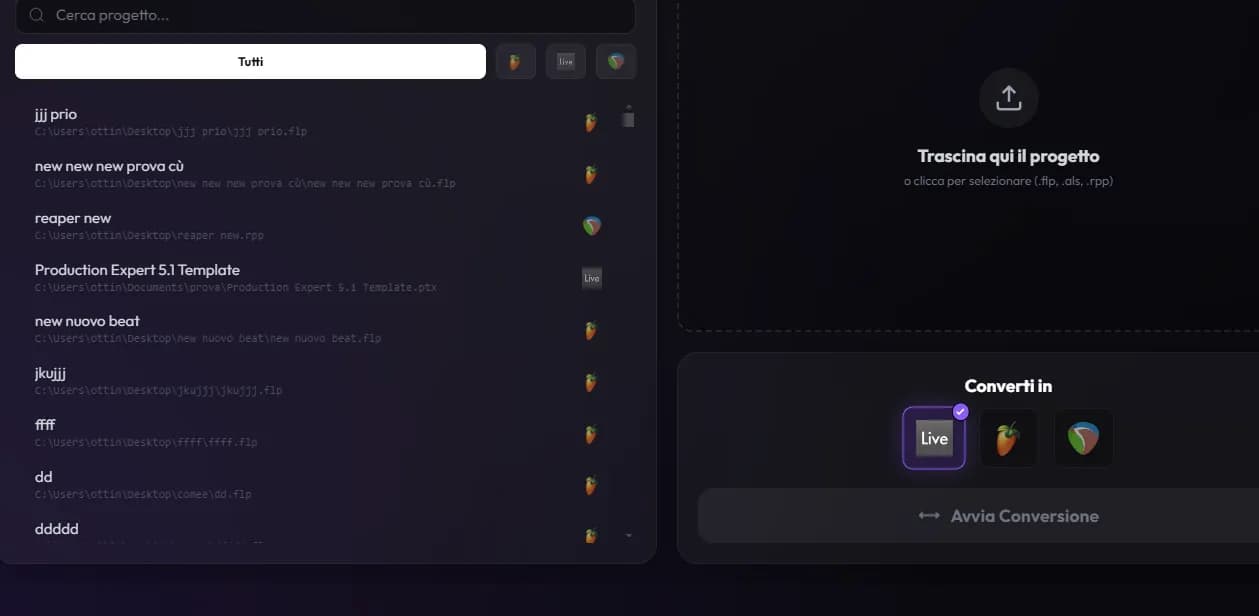
To convert a FL Studio project to REAPER, open Wolflow’s Converter, select the .flp file and choose REAPER as the destination. Open the resulting .rpp in the destination DAW and review the report: clips, MIDI, automation and plugins transfer within the project’s compatibility limits.
When to move from FL Studio to REAPER
This is a practical route for handing a FL Studio beat to someone recording vocals or mixing in REAPER. The converted session lets them edit compatible elements; stems may suit an already approved mix better.
Prepare the project, samples and plugins
Before conversion, check Playlist clips, channel samples and mixer chains. Collect external audio and keep a beat bounce as a reference. FL’s native instruments and proprietary presets need to be reviewed for the specific REAPER conversion path.
- Keep the original and work on a project copy.
- Install the required compatible plugins in the destination DAW: conversion does not install instruments or licenses.
- When sharing the result on another computer, include media and check external paths.
How to convert .flp to .rpp
- Install Wolflow for Windows or macOS and open the Converter.
- Select the .flp project from your library or drop it into the Converter.
- Choose REAPER, run the conversion and read the report before opening the .rpp file.
What to check in REAPER
In the RPP project, review how patterns and clips appear on the timeline. Listen to instruments, drums and automation changes, then check the mixer and sends. If an element does not transfer, render it from the source and compare the result again.
Compare playback with the original bounce. A file opening successfully does not by itself show that every instrument, automation lane and routing behaves identically.
Project conversion or stems?
Project conversion retains supported editable elements. Stems contain rendered audio: useful for preserving complex parts’ sound, but without editable MIDI and instruments. Choose the method based on the work your collaborator needs to do.
Frequently asked questions
Can I open a .flp file directly in REAPER?
These are different project formats. For this route Wolflow generates a .rpp file; renaming the original file’s extension is not enough.
Are plugins and presets preserved?
Wolflow transfers compatible plugin state. Plugin availability, versions, format and native devices can affect the result. The report identifies unsupported elements; also verify playback in the destination DAW.
Can I try the Converter for free?
The Free plan allows one conversion every 7 days, with a connected account and a connection to verify the quota. Projects are processed locally. Check the plans page for availability and limits.
Sources and documentation
Try it with your next project
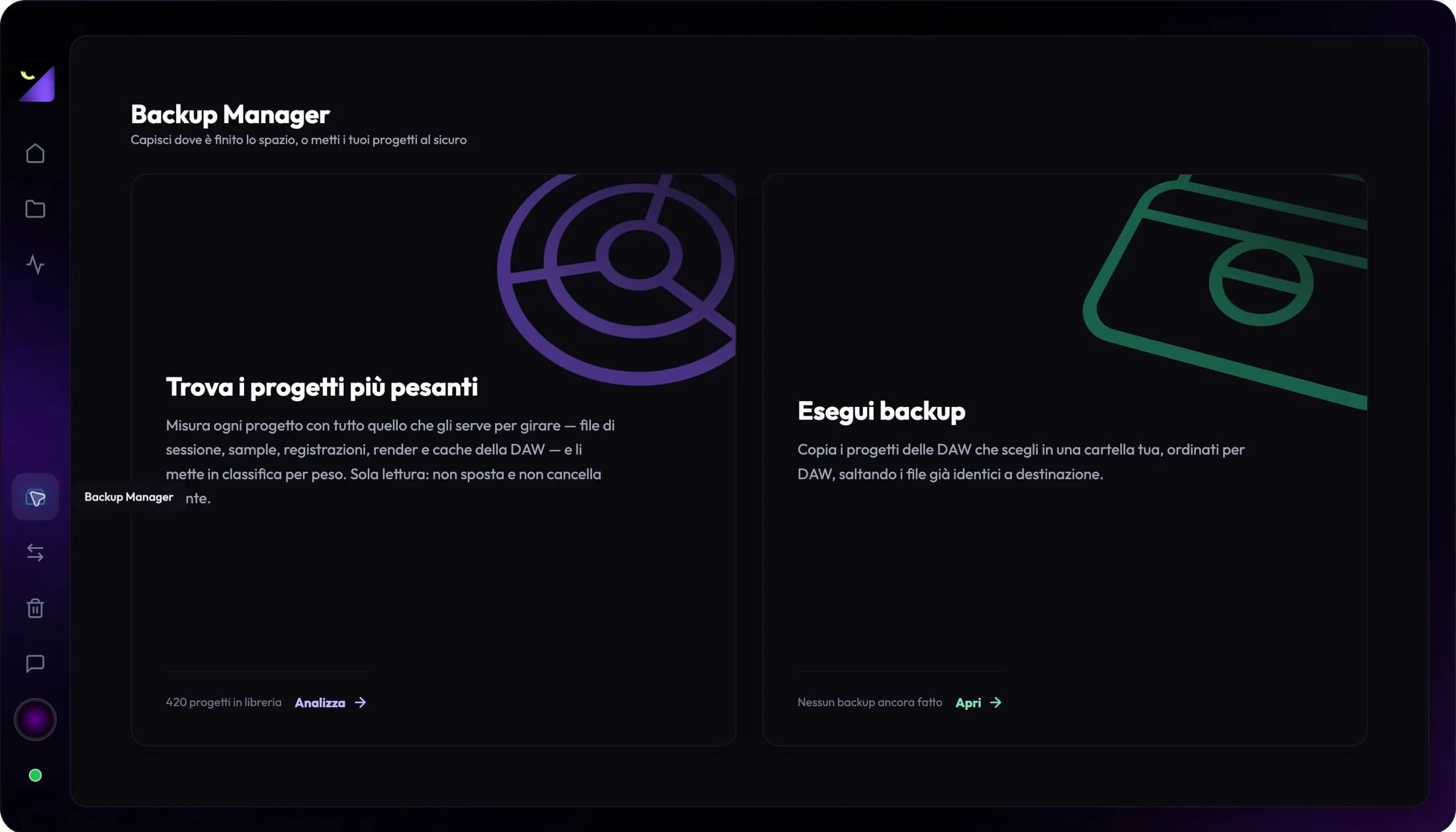
Wolflow is a desktop app for Windows and macOS. Free conversions and backups require a connected account to verify the 7-day quota; Disk Management is a PRO feature. Check the plans for availability.