Menu
HomeAudio ModeVideo ModePricingPluginCharts

SEE HOW IT WORKS

From idea to archive. Keep your flow.

App screens and animated walkthroughs. Follow the workflow, one step at a time.

02 / RECOGNIZE YOUR IDEAS

Your library, at a glance.

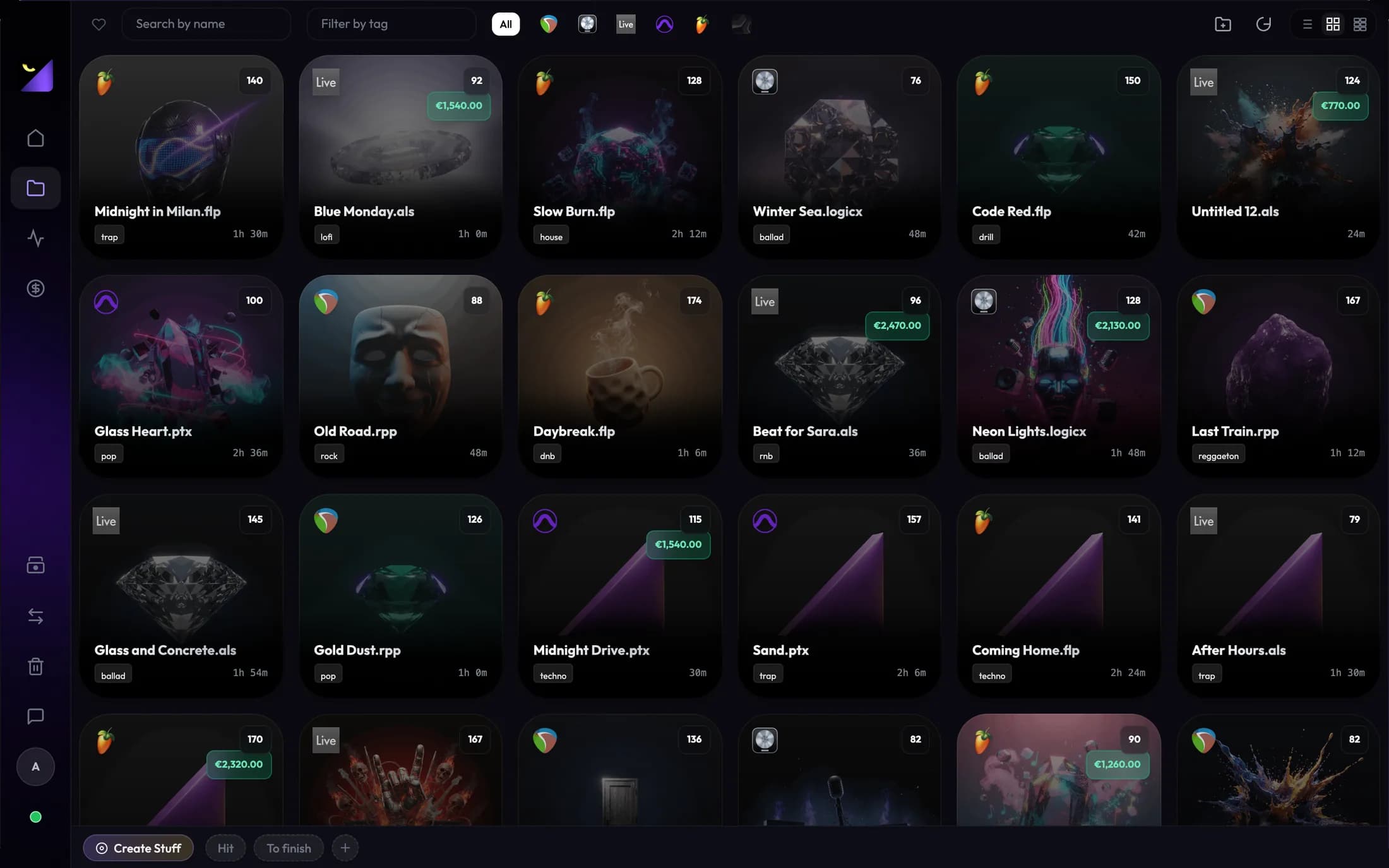
Switch from the list to a cover grid. Give each project a visual identity, recognize the beat, check its status and pick up where you left off. Use Stuff collections to group sessions around your workflow.

  • List and grid views
  • Covers and Stuff collections
  • BPM and work time at a glance
Grid view · app screenshot

INSIDE THE PROJECT

Understand what you made. And how you work.

Wolflow reads available project data and brings together BPM, key when present, tracks, plugins and estimated work hours. The analytics dashboard connects your sessions and shows which tools you use most. Details vary by DAW and format.

  • BPM, tracks and plugins from supported projects
  • Most-used plugins and library statistics
  • Estimated work hours and production trends
Explore Plugin Charts
Analytics dashboard · app screenshot

STORAGE FOR CREATIVE WORK / PRO

Make room for your next project.

Recordings, samples and bounces grow with every session. See what belongs to each project before reorganizing your studio drives.

01 / 03

Start with the projects that take up the most space.

Recordings, samples and bounces can outweigh the DAW file. Wolflow ranks analyzed sessions by size so you can identify finished work to archive before your next recording.

What you learn

Project size · exclusive files · shared files · free drive space

02 / 03

Understand what can be rebuilt. Keep what matters.

Recognized cache categories help separate temporary data from originals and saved versions. Wolflow shows sizes and locations; manage cleanup in your editing software. It does not delete your files automatically.

Regenerable cache

Recognized DAW caches and indexes

  • Can be rebuiltRecognized temporary cache. Removing it can require previews to be rebuilt.
  • KeepOriginal footage, recordings, project files, useful autosaves and backups.
  • Check firstShared files and external media can still be needed by other projects.
03 / 03

Prepare a backup before archiving.

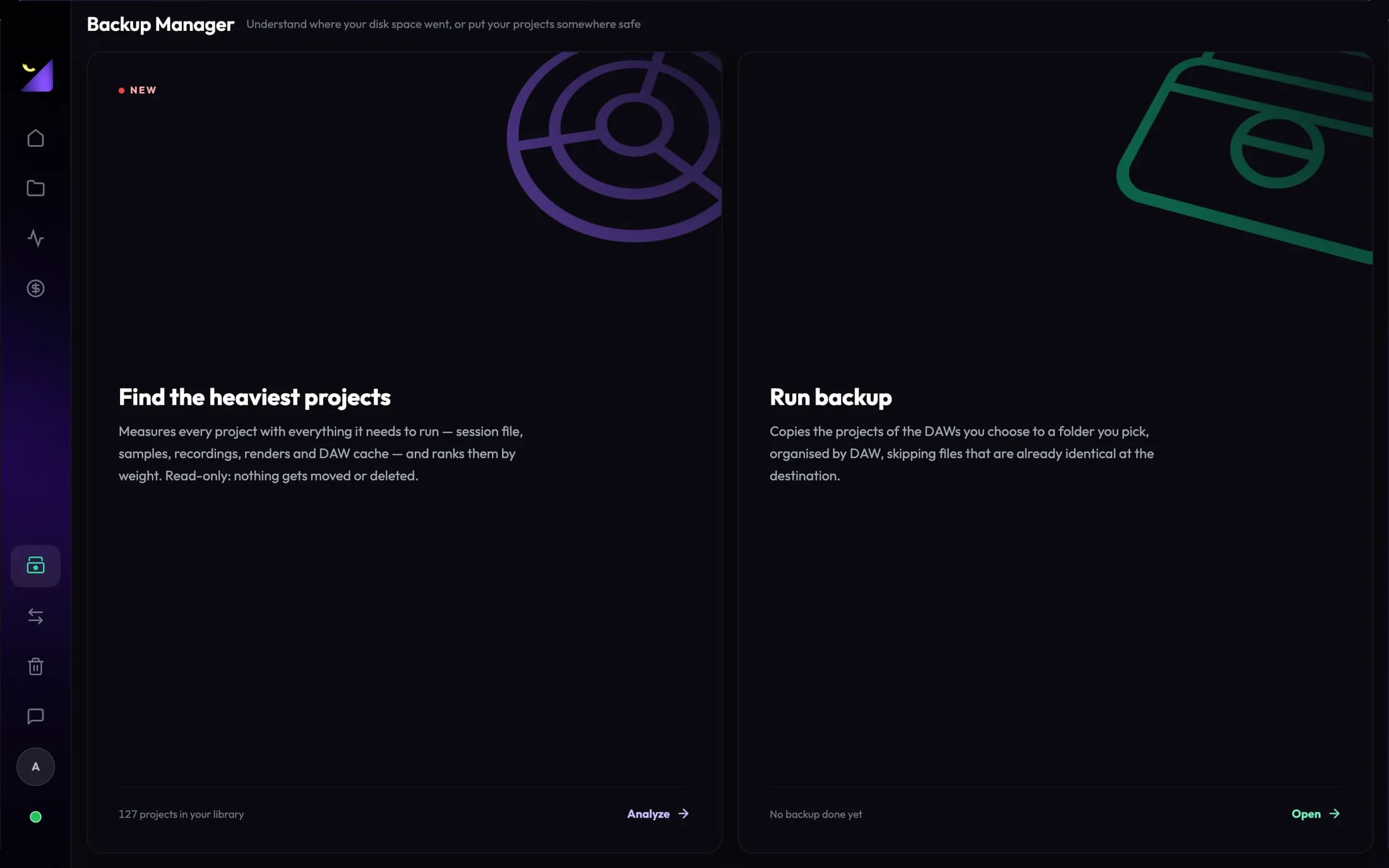
Choose your applications and a destination drive in Backup Manager. Include media within project folders and verify the copy. Check externally referenced assets separately before moving or removing originals.

Your next step

Choose destination → copy → verify → archive

Disk Management analyzes in read-only mode: it does not move or delete your files. Storage analysis is PRO; Free backup allows one use every 7 days with a connected account. Availability and limits are listed in the plans. Compare plans

DISK MANAGEMENT / PRO

A project is more than its DAW file.

An FL Studio or Ableton file alone does not show a session’s storage footprint: vocal takes, samples, bounces and renders can take up much more space. Wolflow ranks analyzed projects by size so you can identify finished sessions to archive and plan room for new recordings. Shared files are shown separately: check samples used in multiple beats before moving a project.

  • Largest-project ranking
  • Total size, exclusive files and shared files
  • Available space on the drives involved
Disk Management · app screenshot

CACHE AND TEMPORARY FILES / PRO

See where storage goes outside your projects, too.

Library indexes and DAW temporary files can live outside your beat folders. Wolflow shows recognized folders, their size and whether they contain regenerable data, backups or personal files. Open the folder to decide your next step.

  • Recognized DAW caches and indexes
  • Regenerable, backup and personal-file categories
  • Folder path and opening
WOLFLOW / CACHE

HOW IT WORKS

Every file, in its category.

Measure and classify. Clean up in your software.
Animated workflow illustration · illustrative example

BACKUP MANAGER / PRO

Protect your sessions. Choose where they go.

Choose the DAWs to include, set a destination folder and start the copy. “Include project files” also copies linked audio and media in the project folder. Backup Manager organizes copies by software and skips identical files already at the destination.

  • Choose applications and a destination folder
  • Option to include project audio and media
  • Summary, progress and history
WOLFLOW / BACKUP

HOW IT WORKS

From project to protected copy.

Include media in the project folder.
Animated workflow illustration · illustrative example

SWITCH DAWS, KEEP CREATING

From FL Studio to Ableton. And beyond.

The built-in converter lets you take a project to another supported DAW. Choose the project and destination format. The dedicated page explains which elements can transfer and the conversion limits: plugins and features depend on compatibility between applications.

  • FL Studio · Ableton Live · REAPER · Pro Tools
  • Project and destination-format selection
  • Format and compatibility guide
View formats and compatibility
WOLFLOW / CONVERSIONE

HOW IT WORKS

Your idea changes format.

Transferred elements depend on compatibility.
Animated workflow illustration · illustrative example

YOUR EVERYDAY FLOW

Less manual organization. More creative work.

The Bridge and watched folders support your DAW workflow. The cataloging popup lets you assign an artist, tags and status when saving. A dashboard with widgets, trends, levels and milestones helps you follow your production.

  • Watched folders and new projects
  • Customizable dashboard and widgets
  • Statistics, levels and milestones
WOLFLOW / WORKFLOW

HOW IT WORKS

Every idea finds its place.

Save, tag and find your project.
Animated workflow illustration · illustrative example

CLEAR ANSWERS

Before you start.

Project organization, analysis and backups for producers.

How can I organize FL Studio, Ableton and Logic Pro projects together?

Wolflow scans supported DAW projects and brings them into one library. Search by name, filter by software and tags, assign statuses and switch between list and cover-grid views.

Can I see BPM and plugins without opening the DAW?

Yes. Wolflow reads available metadata in supported formats. BPM, key, tracks and plugins depend on the project data and format support; not every DAW exposes the same details.

How do I back up music projects and samples?

Select DAWs and a destination in Backup Manager. Enable “Include project files” to also copy linked audio and media in the project folder. Check sample libraries and assets on external paths separately.

How do I find my largest DAW projects?

Wolflow PRO Disk Management ranks analyzed projects by size and separates exclusive and shared files. The cache section shows recognized folders outside projects. Analysis is read-only and does not delete files.

WOLFLOW / AUDIO MODE

Start with an idea. Not a folder.

Download Wolflow for Windows or macOS and organize your creative work.