Projects and collaboration
Back up audio and video projects, including media
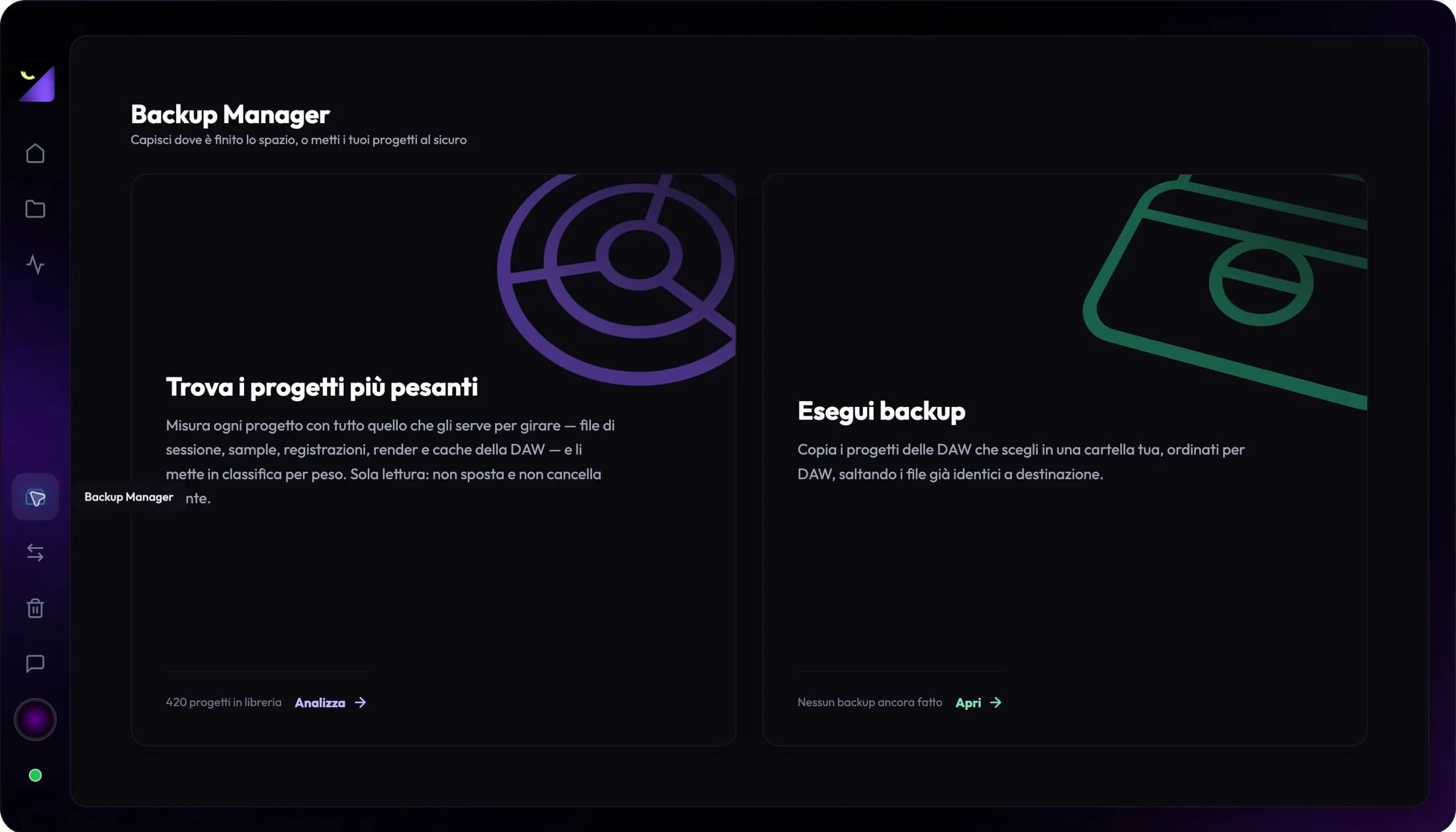
An audio and video project backup needs the project file and the media required to reopen it. In Wolflow Backup Manager, choose applications and a destination, copy projects and check external assets separately. Open a copy before archiving or removing originals.
The project file is not the whole job
A FLP, ALS, RPP or PRPROJ can reference samples, recordings and footage elsewhere. Copying only that file leaves out dependencies needed for playback or editing. Identify required media and collect it with the source application’s tools.
Prepare the copy with Backup Manager
- Open Backup Manager and choose Run backup.
- Select the applications whose projects you want to copy and an existing writable destination folder.
- Enable Include project files to copy recognized companion folders such as Audio, Bounces and Backup beside the project file. Folder-based projects retain their own structure; still check media at other paths and on other drives.
- Run the copy, review the result and verify a project at the destination.
Read results and history
Each operation creates a dated Wolflow_Backup folder and groups projects by application. Its summary reports copied files, size and errors; a positive file count does not rule out an incomplete copy. Open the destination and inspect the work you intend to preserve.
History keeps up to 50 recent operations. Clearing history removes the app log rather than existing copies at the destination. Start backups from the panel when needed and check available space before a large collection.
Free and PRO availability
Free allows one backup every seven days with a connected account and an online quota check. The window rolls from usage and is separate from conversion and transfer quotas. PRO removes the plan quota; the destination still needs sufficient space and permissions.
Try reopening the copy
Open the copied project and check clips, samples and offline media. To actually verify portability, use another computer or a path check that confirms assets are read from the destination, rather than still-accessible original folders.
Record the required DAW or editor, version and plugins. A file backup does not install instruments or transfer their licenses.
Shared files and copies on different drives
A shared sample or clip can belong to several jobs. Check references before moving it. A copy on the same drive helps with some revisions, but does not protect against that drive failing: choose a separate destination and retain the copies you need.
Frequently asked questions
Does backup include all media on external drives?
The option includes recognized companion folders beside project files and the structure of folder-based projects. It does not guarantee collection of every external reference: check those assets separately and verify the copy.
Can I try backup on the Free plan?
The Free plan allows one backup every 7 days with a connected account and a connection to verify the quota. PRO allows unlimited uses; plan availability is shown on the pricing page.
Try it with your next project
Wolflow is a desktop app for Windows and macOS. Free conversions and backups require a connected account to verify the 7-day quota; Disk Management is a PRO feature. Check the plans for availability.