Audio and plugins
Best FL Studio plugins: VST instruments for your beats
The best FL Studio plugins help you write the sound you want and work well in your session. To discover VST instruments used in real projects, check Instruments on Plugin Charts. Then compare synths, samplers and piano or drum instruments against your beat’s needs, checking format and compatibility.
Best instruments for FL Studio: what sound do you need?
“Best VST for FL Studio” is a broad search. A synth and an orchestral library are not direct substitutes: one provides controls to build timbres, the other offers a palette of sampled instruments. Start with a specific part of your beat and choose the category before the plugin name.
- Synths: bass, leads, pads and sounds to design and automate.
- Pianos and keyboards: harmonic parts where touch response and character matter.
- Samplers and drums: sample handling, articulations and rhythm programming.
- Sampled instruments: acoustic timbres or sound collections, with library requirements to check.
Discover VST instruments on Plugin Charts
Select Audio and check the Instruments mini chart for recognized instruments with the most usage in community projects. Compare All time with Month and Week, which select statistics from users active during each period. Also check the main ranking for plugins without a recognized category yet.
DAW Charts shows how analyzed projects are distributed by software. It provides context, but does not filter Instruments to FL Studio projects only. Treat these names as candidates to check in FL Studio rather than a ranking exclusively of that DAW’s users.
VST, VST3 and AU: check compatibility
FL Studio uses native instruments and external plugins. Before installing a candidate, check your DAW version, operating system and the manufacturer’s supported architecture. A Windows installer does not work on macOS; AU is a Mac format. For sharing projects between Windows and Mac, Image-Line advises using VST versions of third-party plugins.
On an Apple Silicon Mac, also check whether the plugin supports the mode in which you run FL Studio. Appearing in the chart does not automatically make a plugin compatible with every computer. Image-Line’s and the manufacturer’s instructions are the reference for your setup.
How to try a plugin in your beat
Make a project copy and use a MIDI part you know. Try the candidate with the same chords or bass line, first alone and then with drums and other instruments. Check how quickly you find a useful preset and how easily you can change it: a sound that works solo may take too much space in the arrangement.
Check stability, resource use and automation with several instances open. Save and reopen the copy to confirm presets and libraries are found. When collaborating, check that the other person has the plugin and required content, or prepare an audio version of the part.
Free, stock or paid plugins?
Plugin Charts ranks usage and does not offer a price, license or free-instruments filter. To explore the best free VSTs, identify candidates and check terms on the manufacturer’s site. Before adding an instrument, also try tools available in your FL Studio edition: you may already have what you need.
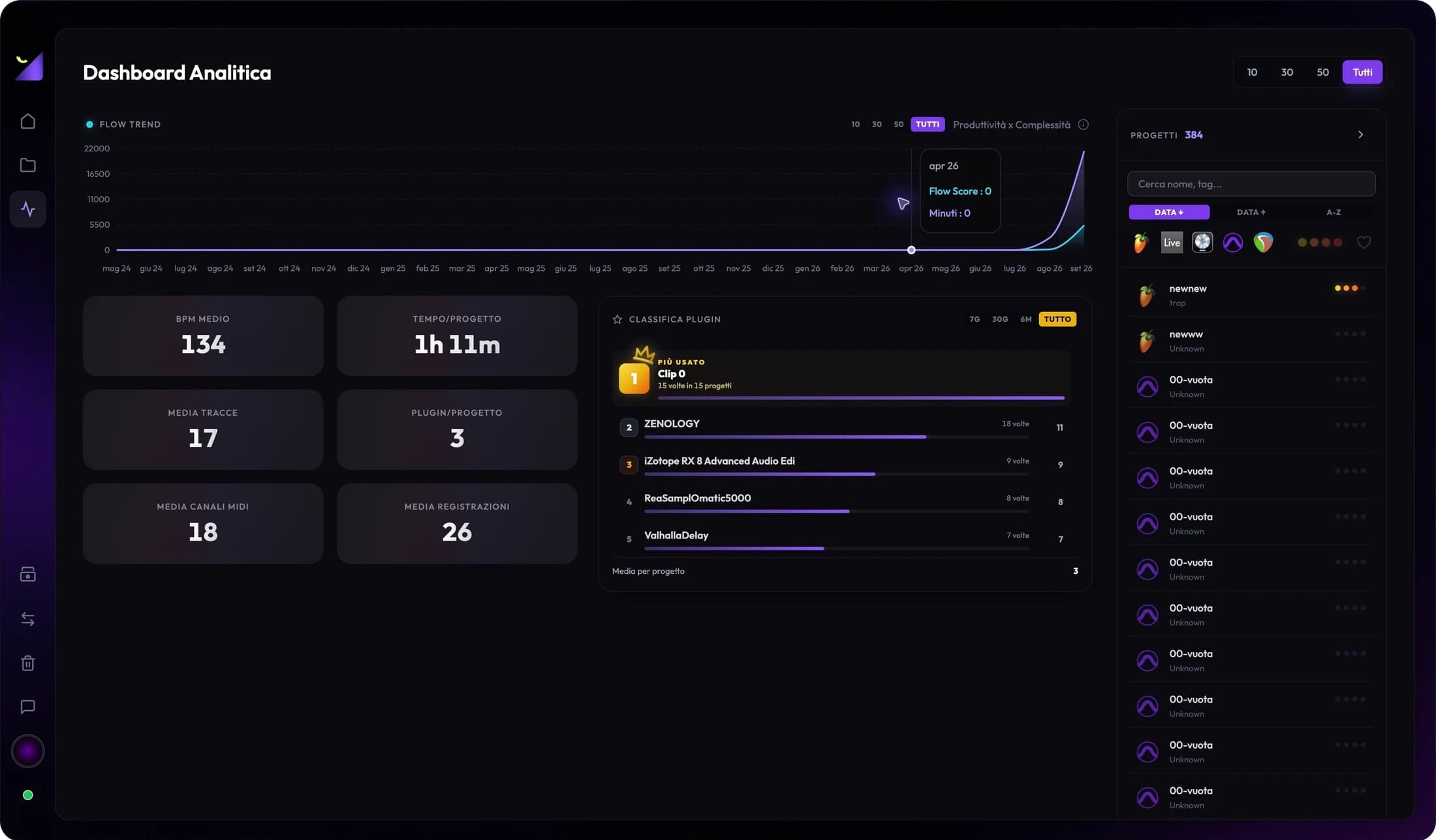
The plugin catalog guide explains how to inspect your project dependencies with Wolflow. Connecting discovery with personal usage helps build a useful library: tools you know well, in the formats your projects and collaborations need.
Frequently asked questions
What are the best FL Studio plugins in 2026?
Start with the category you need and check Instruments or FX on Plugin Charts to discover community-used tools. Then verify compatibility and results in your beat: the chart is not filtered exclusively to FL Studio users.
Does Plugin Charts have a dedicated FL Studio ranking?
The Audio ranking includes analyzed audio projects. DAW Charts shows the software distribution, but does not apply a FL Studio filter to the plugin ranking.
How do I add a VST to FL Studio?
Use the manufacturer’s installer, open Options > File settings > Manage plugins, then run Find installed plugins with Verify plugins. Follow the Image-Line manual for your system’s details.
Sources and documentation
Which plugins are actually used? Check the chart.
Plugin Charts shows usage detected in Wolflow community projects. Check the updated ranking, compare instruments and effects, and build your shortlist of plugins to try.