Disk space and caches
Premiere Pro taking up space: media and cache
If Premiere Pro is taking up too much space, review footage, proxies, exports and Media Cache separately. The PRPROJ file’s size does not represent the whole edit. Wolflow PRO helps identify large analyzed projects and recognized caches; manage cache cleanup in Premiere.
Why Premiere Pro fills your drive
The project describes the edit, while video, audio, proxies and exports live in other folders. Identifying the largest job requires reviewing linked files and media on external drives too.
Find large projects with Wolflow
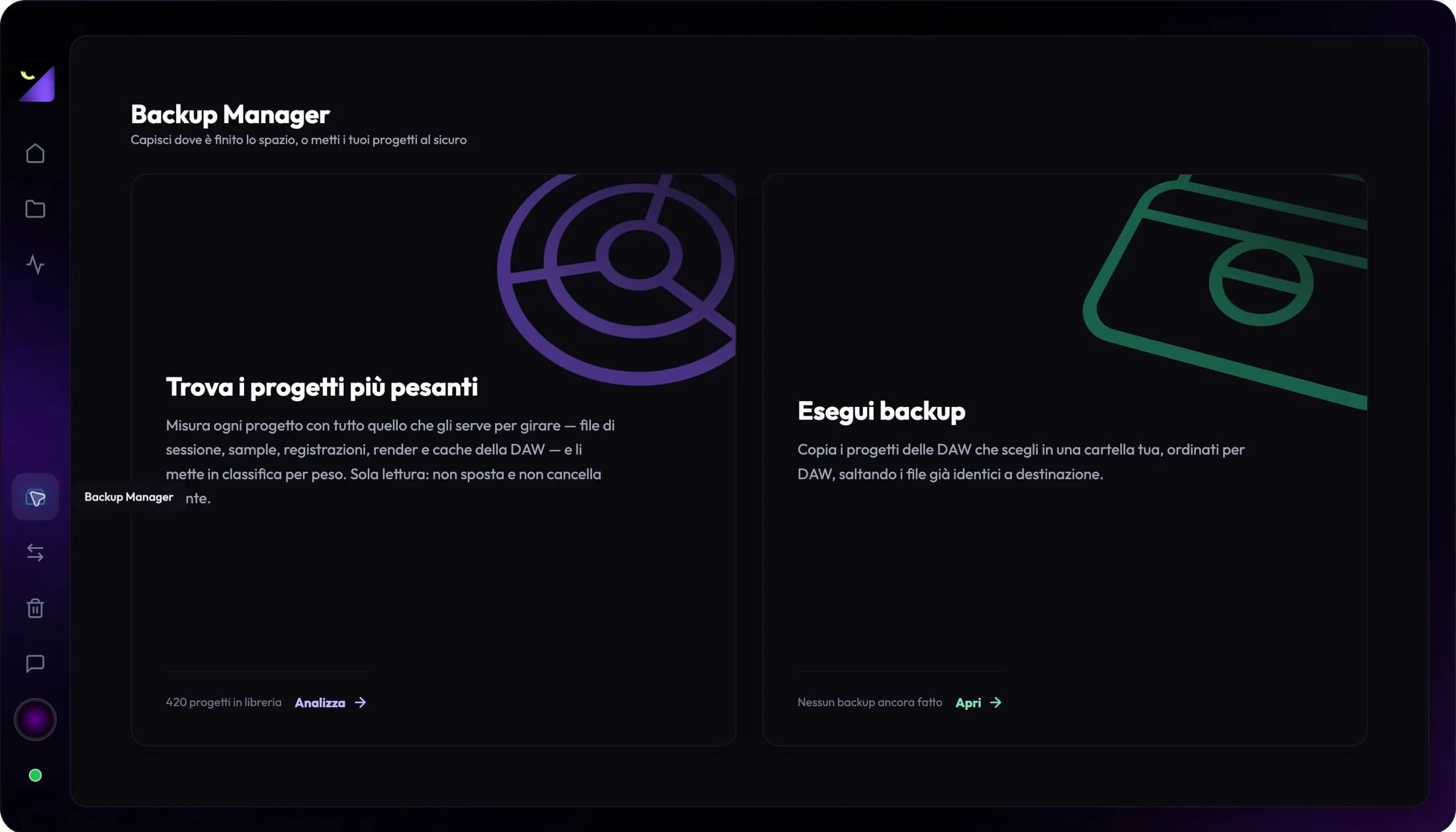
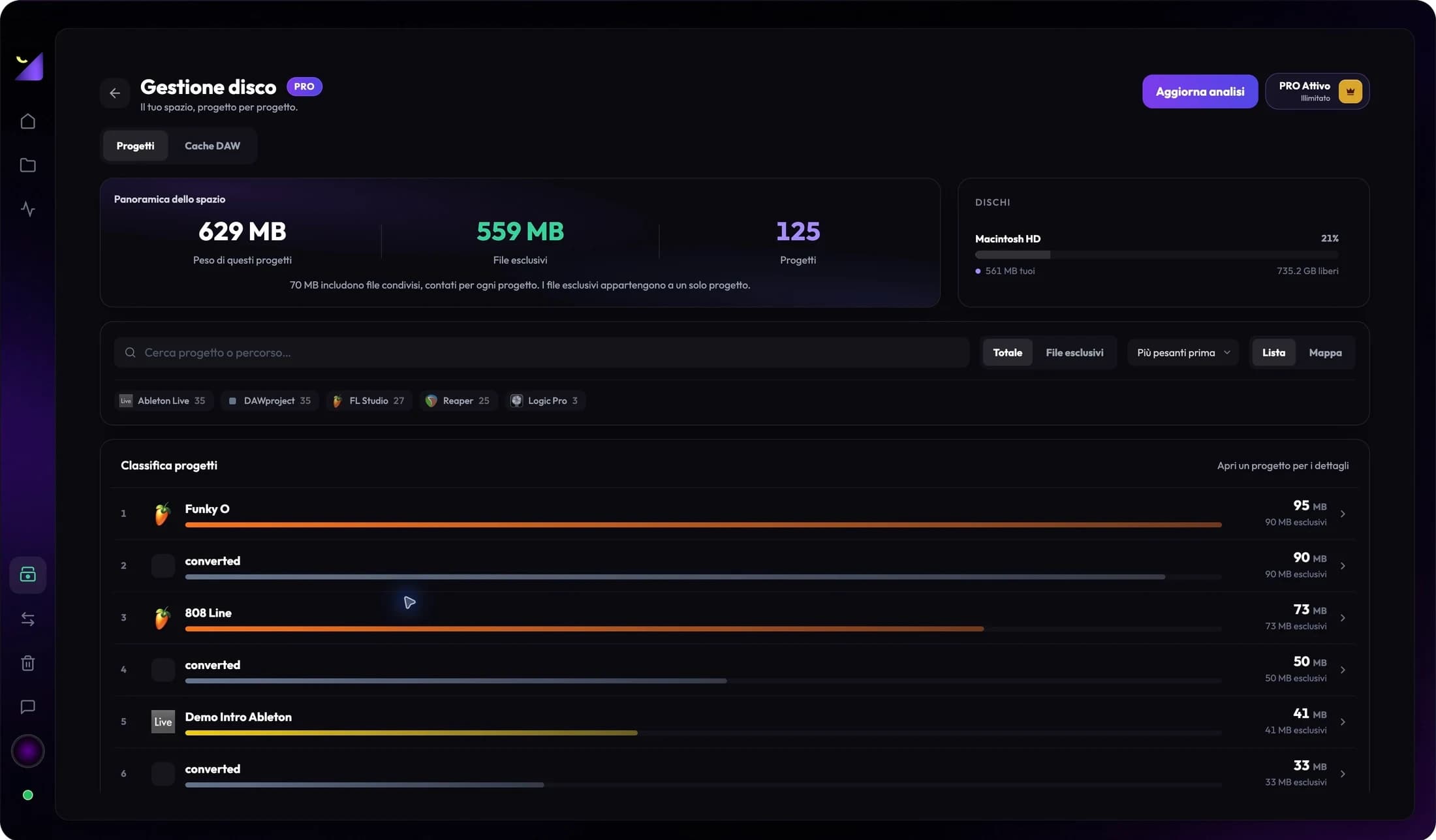
Open Backup Manager and choose Find the heaviest projects. Disk Management is a PRO feature: it ranks analyzed projects by size and shows exclusive files, shared files and free space on the drives involved.
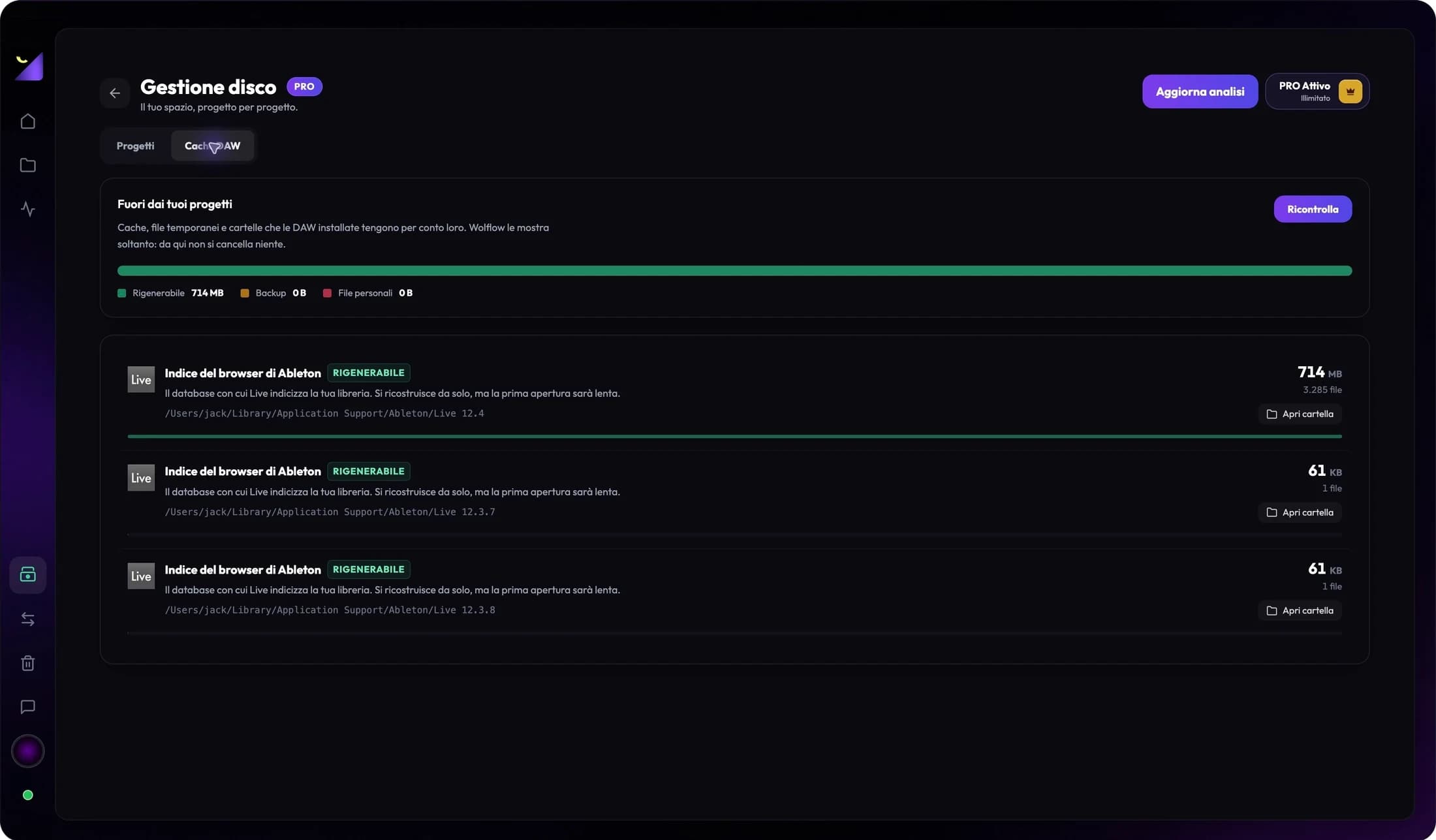
Use the results to decide which job to review. Recognized cache folders show sizes and paths; if you configured custom locations, check them in the editor too. Scanning reads files without moving or deleting them.
How to manage cache in Premiere Pro
Open Premiere’s Media Cache settings and review the location. CFA and PEK files belong to the cache; use the editor’s cleanup tools and automatic management options. Required material can be rebuilt.
Archive completed work with required media
If source files account for most storage, clearing cache only addresses part of the problem. Prepare a copy of the project and required media at another destination; check assets outside project folders separately.
Open the copy in the source application and check for missing media. Shared media may serve other jobs: check references before moving it. Total project sizes do not necessarily equal the space you can reclaim.
Frequently asked questions
Does Wolflow automatically empty the cache?
No. Wolflow analyzes and shows sizes, paths and categories for recognized folders. Manage cleanup in the editor that generated the cache.
Does the project file show all storage usage?
No. Media, renders and cache can live outside the file and its folder. Review linked files and external drives to understand the job’s storage footprint.
Can I add every project’s size together?
Shared files can be counted in multiple projects. Use the exclusive/shared distinction and check other jobs’ dependencies before estimating reclaimable space.
Sources and documentation
Try it with your next project
Wolflow is a desktop app for Windows and macOS. Free conversions and backups require a connected account to verify the 7-day quota; Disk Management is a PRO feature. Check the plans for availability.