DAW conversion
Use the DAW Converter: formats, plugins and checks
To convert a DAW project in Wolflow, choose a supported source, destination and workflow available in your version. Check plugins and media, run conversion and test the result in the DAW: successful writing does not guarantee an identical mix.
Sources, destinations and operating system
Desktop version 0.9.993 checks FLP, ALS, RPP, DAWproject, LogicX and PTX sources. The catalog also recognizes software that is not a converter source. Destinations depend on the engine and displayed controls: FL Studio, Ableton and REAPER have dedicated paths; native Logic requires Mac and a compatible base project. Pro Tools uses the supported native PTX path on Windows and Mac. Older PTF is not an equivalent PTX source.
Editable project or audio stems?
Convert the project when compatible editable notes, clips and other elements matter. Use stems to preserve the original DAW’s rendered sound, for example with instruments lacking equivalents. A full WAV, MIDI, AAF and native session are different deliverables. Conversion does not purchase plugins or install libraries on the destination computer.
Prepare a verifiable source
- Save a session copy and collect required media with the DAW’s tools.
- Keep an arrangement bounce as a listening reference.
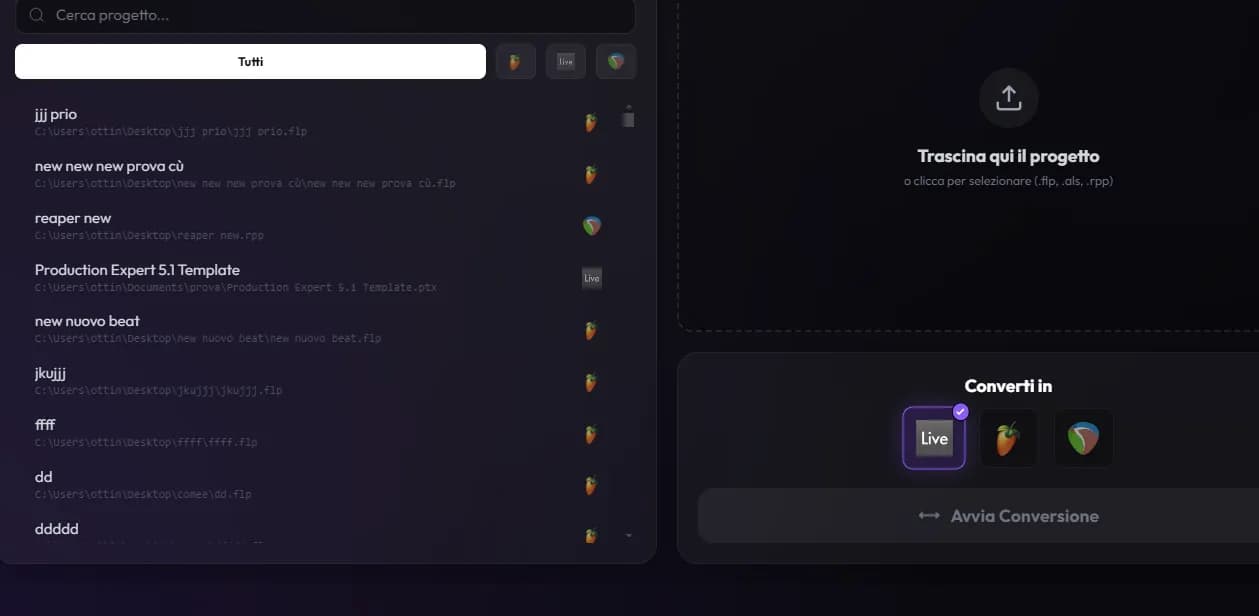
- Select a library project or drag its file into the Converter; verify the recognized path.
- Choose a destination and read Plugin Preflight and any workflow-specific requirements.
- Check account and quota, start conversion and wait for the result.
Plugins, samplers, automation and routing
Transfer depends on format, plugin state and features implemented for the chosen route. Check samplers, native instruments, automation, stretching, sends and complex chains separately. A plugin not installed and one without an equivalent need different solutions. Preflight helps decide what should remain editable and what to render to audio.
Check the report and open the copy
Read warnings and the summary available after conversion. Open the result folder and load the copy in the recipient’s exact DAW. Compare BPM, duration, clip placement, MIDI, audio cuts and plugin sound, then routing and automation at critical points. Include media, limitation notes and a reference bounce in delivery.
Older versions and failed conversions
For FL Studio and Ableton, the app can indicate earlier versions that open the converted copy. There is no universal guarantee for features introduced after that version. If conversion fails, check the message, source format, local services, media and destination requirements. Do not retry blindly; correct the cause before another attempt.
Frequently asked questions
Does everything transfer completely?
No. Support and limitations vary by route, plugin and project. Verify results and prepare reference audio for essential elements.
Is DAWproject always shown as a destination?
Engine support and interface availability can differ. Use destinations actually selectable in your installed version.
Try it with your next project
Wolflow is a desktop app for Windows and macOS. Free conversions and backups require a connected account to verify the 7-day quota; Disk Management is a PRO feature. Check the plans for availability.