Disk space and caches
Find heavy projects and identify shared files
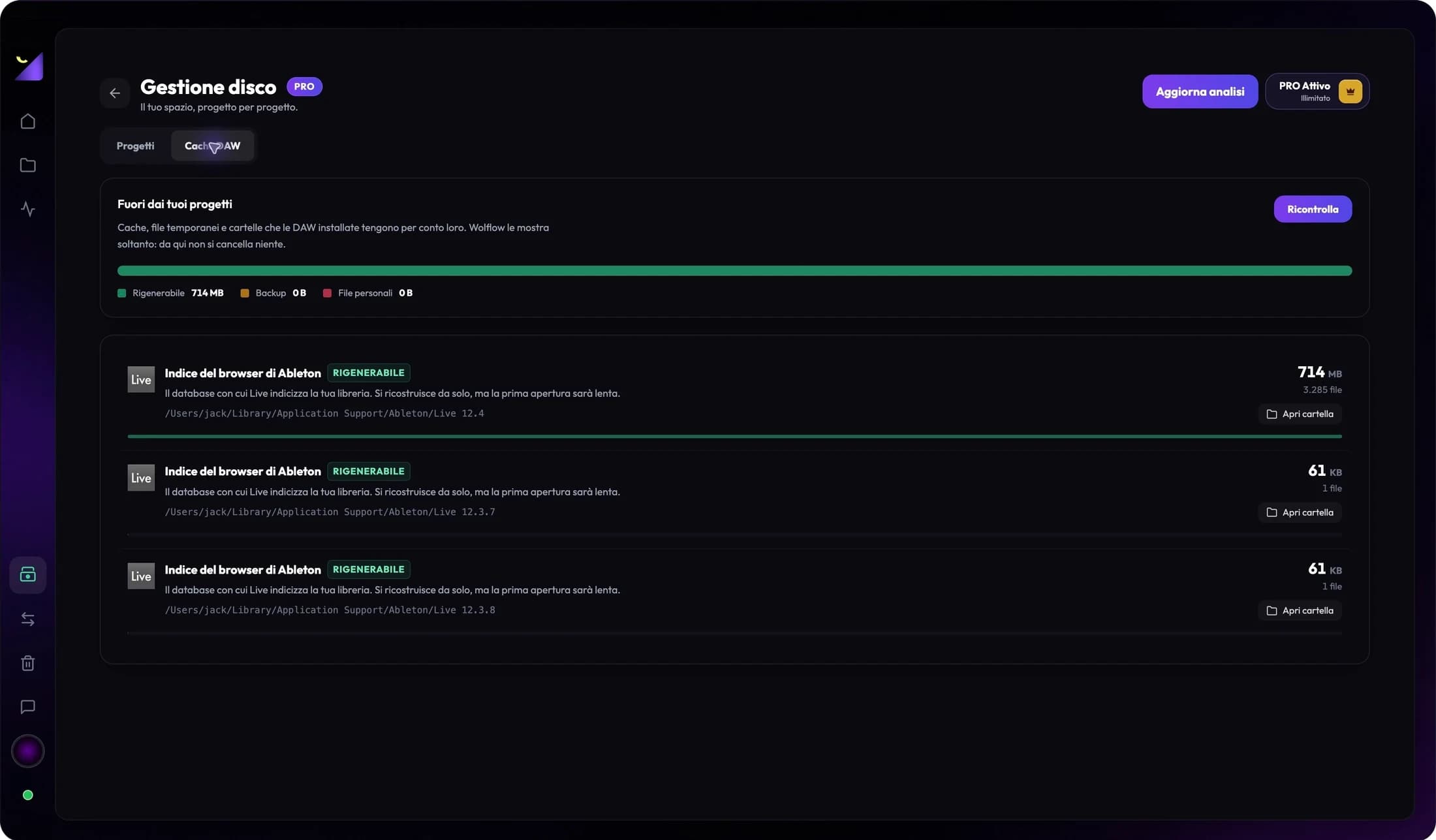
PRO Disk Management finds heavy projects and distinguishes exclusive and shared files within the analyzed library. Use size, categories and paths to decide what to archive. Analysis does not move or delete files.
Analyze the library and choose drives
- Index projects and connect drives containing sessions and media.
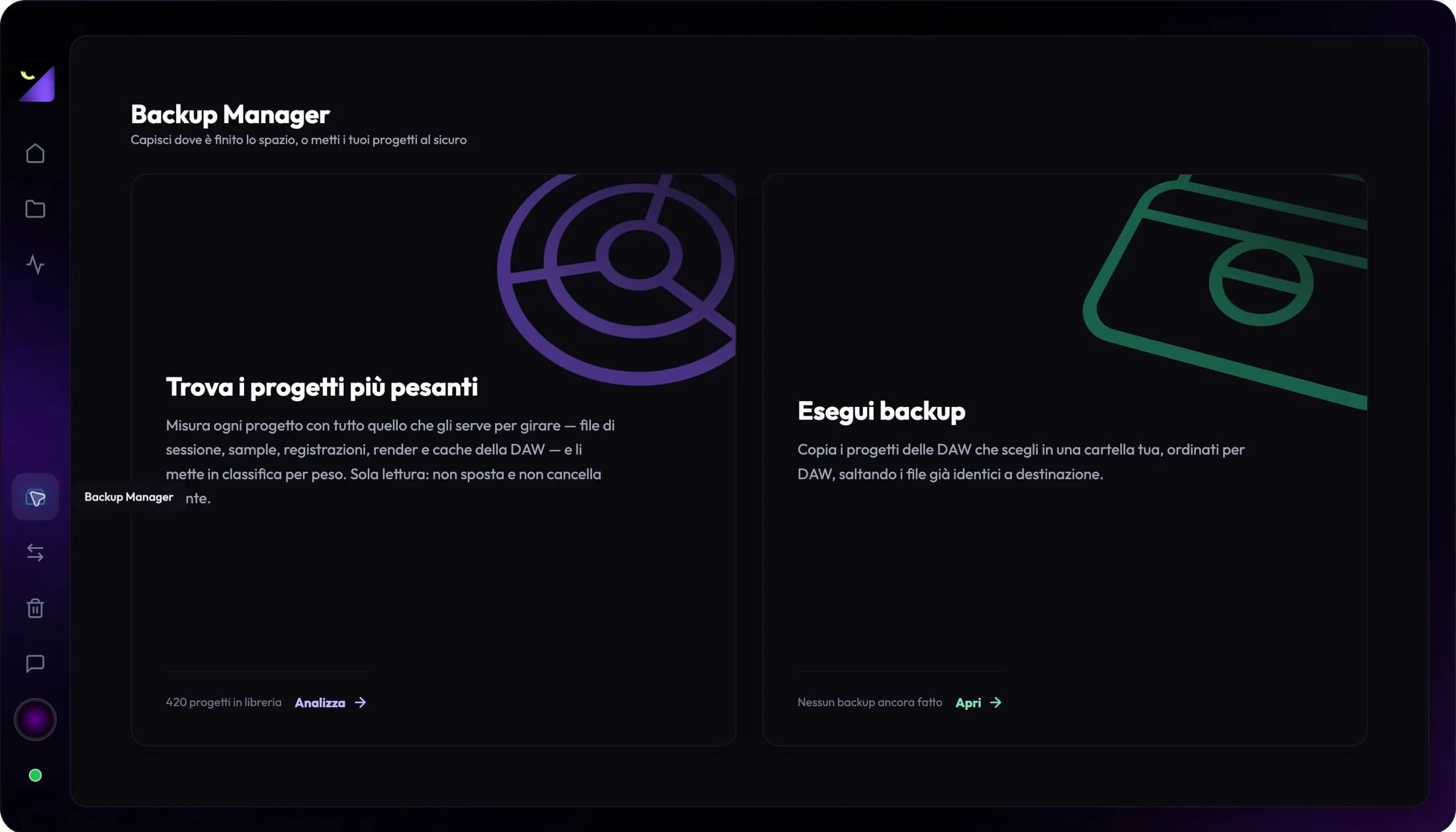
- Open Backup Manager and Find the Heaviest Projects, then choose Analyze Library.
- Wait for results or use Stop; read the analysis date and any partial-result warnings.
- Filter by drive, application, name or path, and sort by total or exclusive size.
Total, exclusive and shared size
Total size represents files attributed to the project in the analysis. Exclusive size concerns files not shared with other recognized projects in the result; shared size avoids treating a common sample as reclaimable for every session. Exclusive describes a relationship within the analyzed catalog, rather than proof that no other application uses that file.
Read categories in project details
Open a project to distinguish audio and samples, recordings, video, exports, images, caches, session files and other files. Original recordings and footage may be irreplaceable; approved renders can be deliveries worth keeping. Categories group files to help inspection; before removing anything, verify the actual path and role in the original application.
List, map and available space
Rankings help prioritize inspection. The map shows storage proportions; drive filters help when sessions and media span different volumes. A volume’s free space and the project total are different values: disks also contain system files, other documents and undetected folders. Clear filters if a session appears to disappear.
Partial results, missing files and custom caches
Disconnected drives, permissions, incompletely readable formats or large archives can produce incomplete results. MISSING and PARTIAL labels require checks before decisions. Custom cache paths may fall outside automatic detection. After moves or major changes, use Update Analysis; do not treat an old snapshot as a current measurement.
From a heavy project to a verified archive
Start with finished work and inspect shared files and external media. Collect dependencies in the creative application, copy to another drive and test opening that copy. Only then assess moving or removing originals. Use editor controls for regenerable caches, keeping useful autosaves and backups separate.
Frequently asked questions
Does exclusive mean I can delete those files?
No. It means not shared between projects detected by that analysis. They may be essential originals or serve unindexed work.
Does Wolflow automatically free the displayed space?
No. Disk Management is read-only. Actual reclaimable storage depends on dependencies, verified backups and operations you choose to perform.
Try it with your next project
Wolflow is a desktop app for Windows and macOS. Free conversions and backups require a connected account to verify the 7-day quota; Disk Management is a PRO feature. Check the plans for availability.