Disk space and caches
DAW caches: FL Studio, Ableton, Logic and REAPER storage
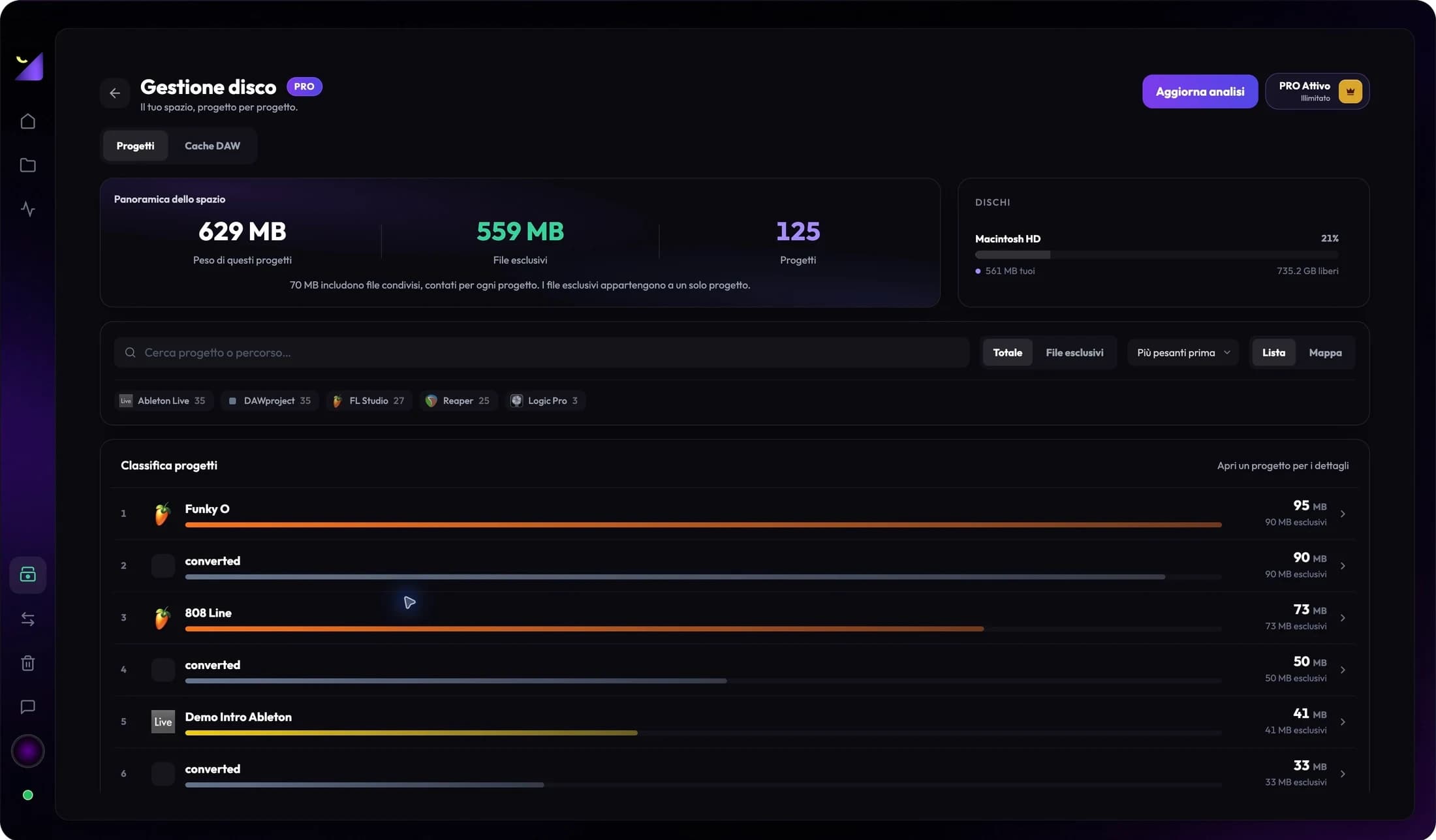
DAWs use storage outside song folders too: indexes, waveforms, personal content and autosaves can live elsewhere. Wolflow PRO measures recognized folders and distinguishes their purpose; manage cleanup through the relevant application.
Why a small session can hide many gigabytes
A FLP, ALS or RPP may mostly contain instructions and paths. Actual storage includes samples, takes, freezes, bounces, sampler content and backups. Some data lives inside the session folder, some in the DAW’s user folders. Session-file size alone therefore does not explain studio disk usage.
Use the DAW Cache section
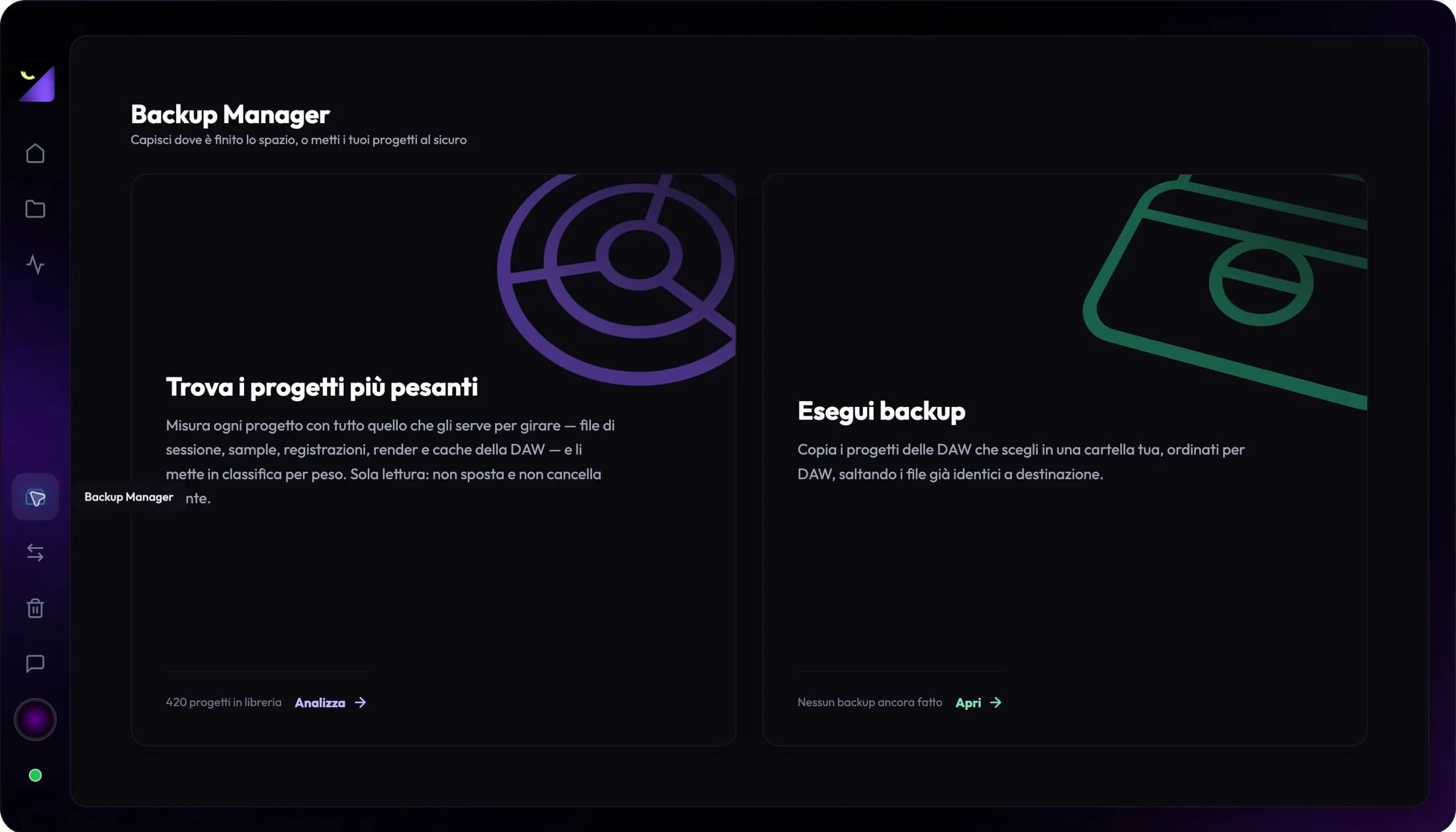
- Switch to Audio Mode and open PRO Disk Management from Backup Manager.
- Select DAW Cache and press Scan; after the first scan, use Rescan.
- Read application, path, description, file count and size for recognized folders.
- Use Open Folder to inspect contents and check DAW settings before modifying them.
Regenerable, backups and personal files
Regenerable indicates data the application can rebuild, often at a time cost on next use. Backups include copies that may be the only recoverable version of work. Personal Files includes content that cannot be recreated from the project. Categories help choose your next check; they do not make entire folders disposable.
FL Studio, Ableton, Logic and REAPER: what to check
For FL Studio, preserve samples and recordings alongside the FLP. In Ableton, distinguish waveform analysis, freezes and session audio. In Logic, check package contents and external assets. In REAPER, a preview waveform is not the original recording. Always use detected descriptions and paths; locations and behavior vary by system and configuration.
Custom caches and undetected libraries
A library on an external SSD or a cache moved in preferences may not appear among recognized locations. Check DAW settings and inspect the path through your operating system too. Displayed storage is not a universal scan of every installed music library. If a volume is absent, connect it before comparing totals.
A practical order for reclaiming storage
Identify a folder, confirm its contents are genuinely regenerable and manage it with DAW tools. Keep useful backups, presets and originals. For completed projects, first prepare an archive with verified media. After cleanup, scan again to measure the change and open an important session to check correct playback.
Frequently asked questions
Does the cache category always contain disposable data?
No. Check descriptions and contents; freezes, autosaves and working files can have different value from a simple regenerable index.
Why is the disk still full after cleanup?
Media, libraries, unindexed projects or other documents may dominate storage. Compare volume space, project analysis and custom paths.
Try it with your next project
Wolflow is a desktop app for Windows and macOS. Free conversions and backups require a connected account to verify the 7-day quota; Disk Management is a PRO feature. Check the plans for availability.