Account and support
Fix Wolflow problems: Bridge, scans, audio and accounts
To resolve a Wolflow issue, first identify the failing stage: file reading, Bridge, analysis, conversion, backup or account. Check the nearest cause and keep the error message, avoiding full reset as your initial attempt.
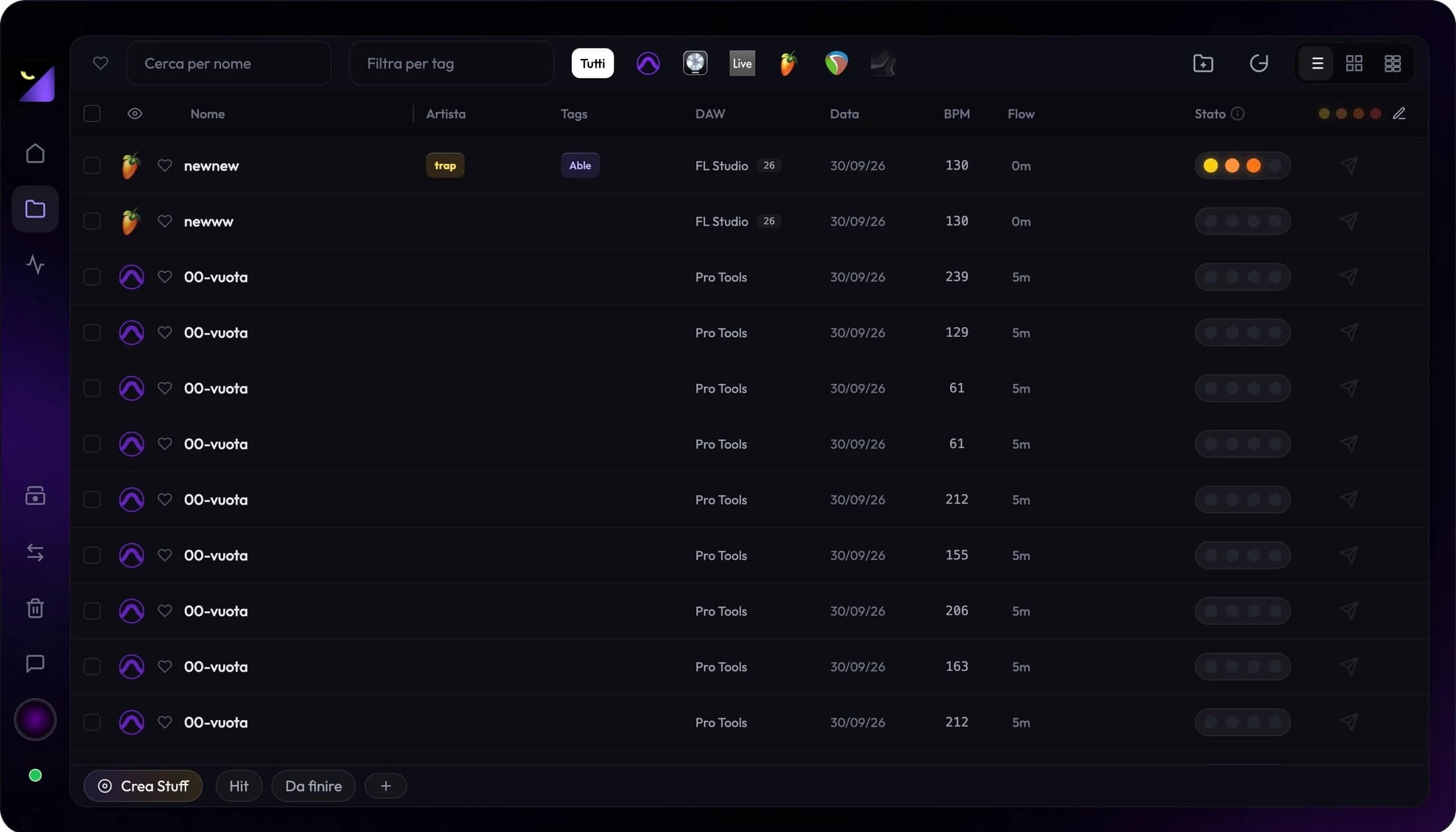
The project does not appear in the library
Open the file in its DAW or editor to verify integrity and path. Check Audio/Video mode, filters, plan limits and Trash. Connect the volume, check permissions and local availability of cloud files, then add the specific folder and scan. An unsaved session or unsupported format needs a different solution from simply refreshing the list.
Disconnected Bridge or a stalled library
Allow app startup to finish and check Bridge diagnostics. Verify watched folders are configured, then use Sync or Restart Bridge where available. If it persists, restart the app and read local-service errors. Do not blindly disable system protections; identify a specific message and ask support if you cannot tell which process is blocked.
Empty metadata or unreadable audio
For metadata, save the project and use Full Re-analysis, distinguishing missing fields from formats that do not expose that detail. For audio, open the file in a player, check drive and path, then relink or render a readable copy. LUFS measurement requires audio; a DAW project without a bounce does not automatically provide it.
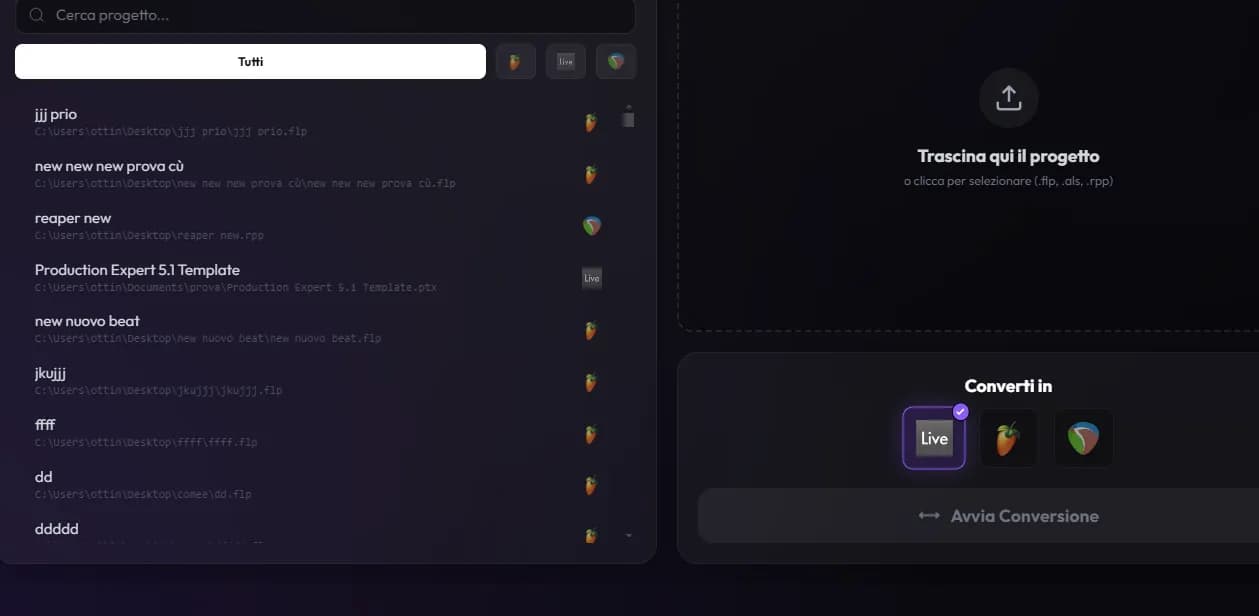
Failed conversion or stem render
Read the error and check source format, destination, operating system, account and workflow requirements. For native Logic, check the Mac base project; use Preflight for plugins. For stems, inspect the DAW window, export settings and time selection. If audio arrives offline, check media and sample rate; the issue may concern importing rather than writing the AAF.
Incomplete backup or transfer
Check source access, available space, writable destination and quota. Transfers also need temporary storage and compliance with the displayed size limit. Read the backup summary; an operation ending with errors is not a verified copy. For external samples or footage, collect media in the original application and test delivery from the new folder.
Unrecognized account, quota or PRO
Check the actually connected account, network, license and device messages. Free quotas become available after their rolling window rather than an app restart. If Wrapped is stale, use Sync Now and check period and access. For a promotion or activation, read the app outcome rather than infer PRO from completing sign-in alone.
Updates, notifications and support
- Open Notifications and check announcements, errors and available updates; a ready download may require Install and Restart.
- Save open projects before restarting and verify the version you want to diagnose.
- Open in-app Support and connect the account to receive replies when required.
- Provide operating system, Wolflow version, source application, format, action and error text. Share only files needed for the case.
- Use full reset only after understanding which data and progress will be cleared.
Frequently asked questions
Does reinstalling fix every issue?
No. Missing paths, unsupported formats, external media and quotas need specific checks. Start with the message and affected feature.
Can I clear data to restore my quota?
No. Free quotas are associated with the account and service usage window. A local reset may remove progress without restoring availability.
Try it with your next project
Wolflow is a desktop app for Windows and macOS. Free conversions and backups require a connected account to verify the 7-day quota; Disk Management is a PRO feature. Check the plans for availability.