Getting started
Install and set up Wolflow on Windows and Mac
To get started with Wolflow, install the version for your computer, choose a mode, create your profile and check a first project folder. Connect your account for features requiring quotas, synchronization or online access.
Download and open the app
Use Download Wolflow on the official website. Downloads distinguish Windows and macOS; on Mac, choose the appropriate build, including Apple Silicon when available. Follow the package instructions, launch the app and allow its local services to start. The website alone does not scan your drives.
Choose Audio Mode or Video Mode
Audio Mode gathers music work; Video Mode gathers editing and graphics work in supported formats. The choice changes the catalog, labels and statistics. Switch modes in the Bridge panel: a video project absent from the audio list may already exist in the video list, without requiring another import.
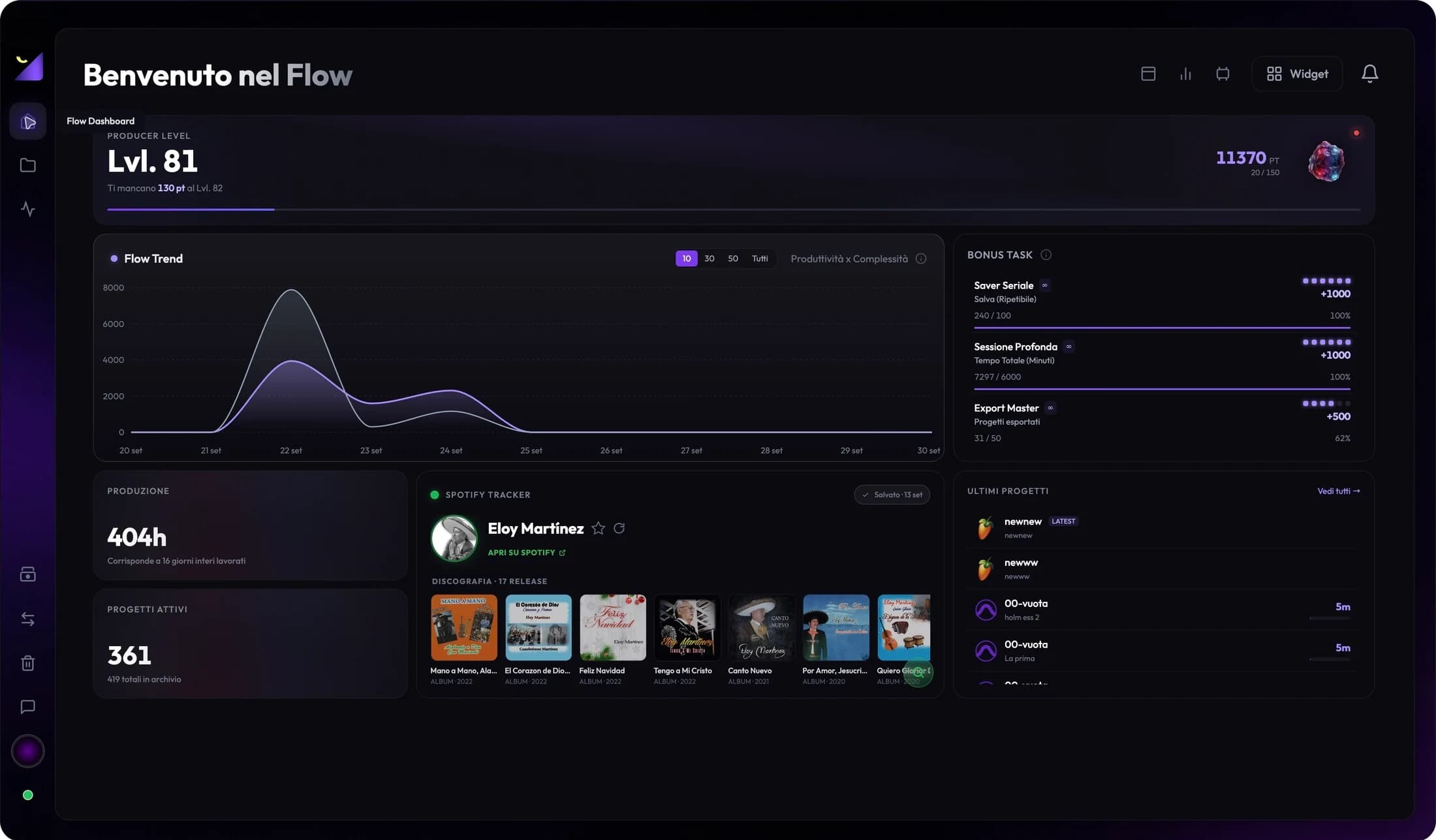
Set up your profile and dashboard
Enter a name and role, choose an icon or photo and select an initial layout. You can change these in profile and dashboard settings. The local profile identifies your work in the app; your Wolflow account connects it to the website. If you run a studio, configure Studio Mode and its details.
Change language and update your profile
Use the Italiano and English flags in the profile panel to change the app language. Edit your name, role, icon or photo and save without scanning again. Changing language updates interface labels; it does not translate filenames, personal tags or session contents.
Verify your first project
- Connect external drives and open the folder in your operating system to check access.
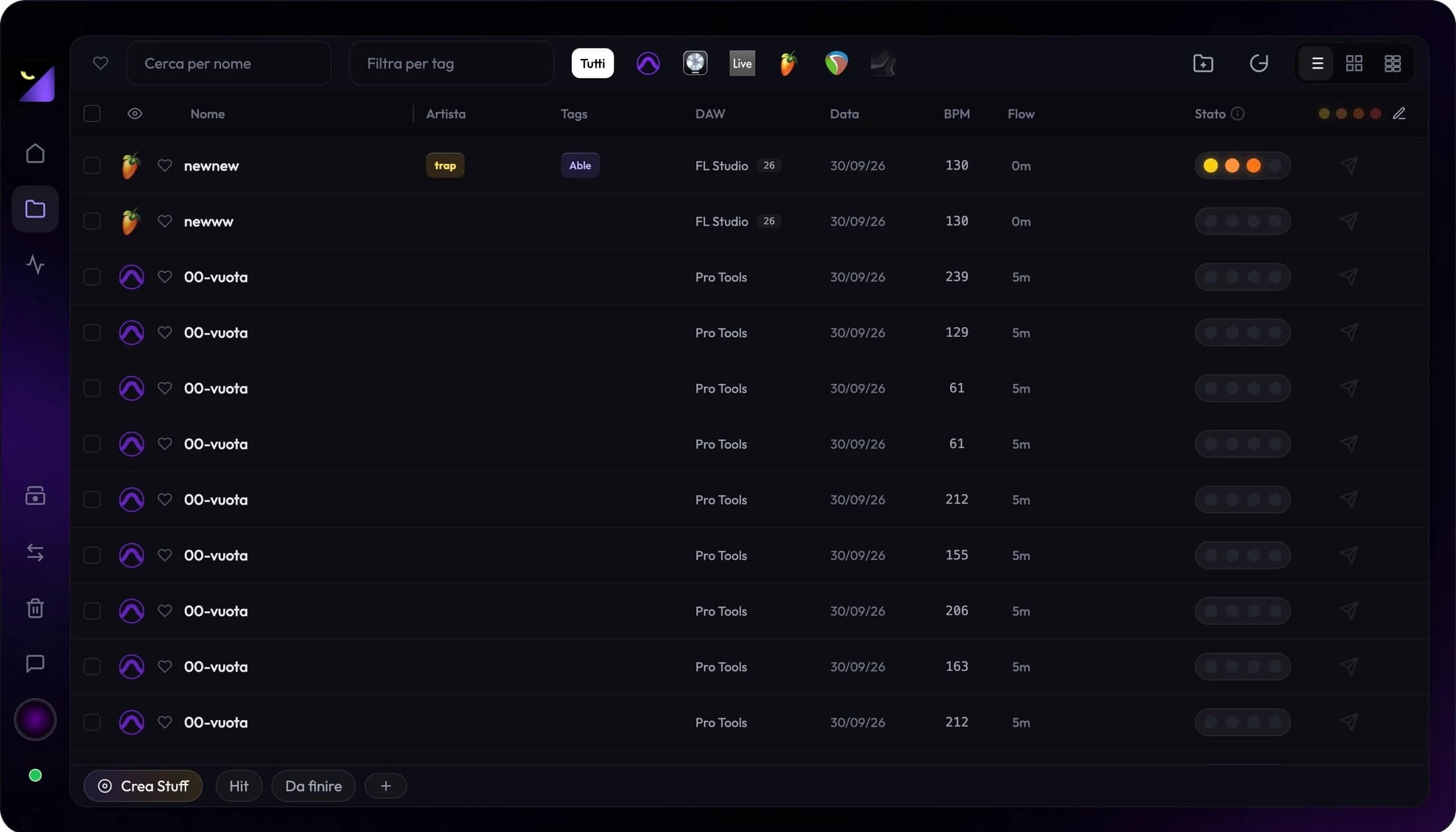
- Open Projects, use Add Folder and select the path where you save sessions.
- Start scanning and wait for results; check filters and the selected mode too.
- Open analysis for a known session and compare name, path and metadata with the original.
Connect your account and check feature access
Use Connect Now in your profile, finish signing in through the browser and return to the app. Check the account name and displayed plan. Free conversions, transfers and backups have separate seven-day quotas and require online account access; PRO features show their access gate when unavailable. Check Pricing for current availability and conditions.
Checks after installation
Save a change in a watched project and confirm the library updates. Try opening its folder and linking an export. If Bridge is disconnected, allow startup to finish, use diagnostics and restart Bridge if needed. A full reset clears data and progress; it should not be your first repair attempt.
Frequently asked questions
Can I change modes after first launch?
Yes, use the Bridge panel to switch between Audio and Video. Check the mode when looking for a project that does not appear.
Do I need internet to read projects?
Files are read locally. Accounts, Free quotas, transfers and online integrations require connectivity; PRO access also depends on license status.
Try it with your next project
Wolflow is a desktop app for Windows and macOS. Free conversions and backups require a connected account to verify the 7-day quota; Disk Management is a PRO feature. Check the plans for availability.