Projects and collaboration
Project tags, status, favorites and collections
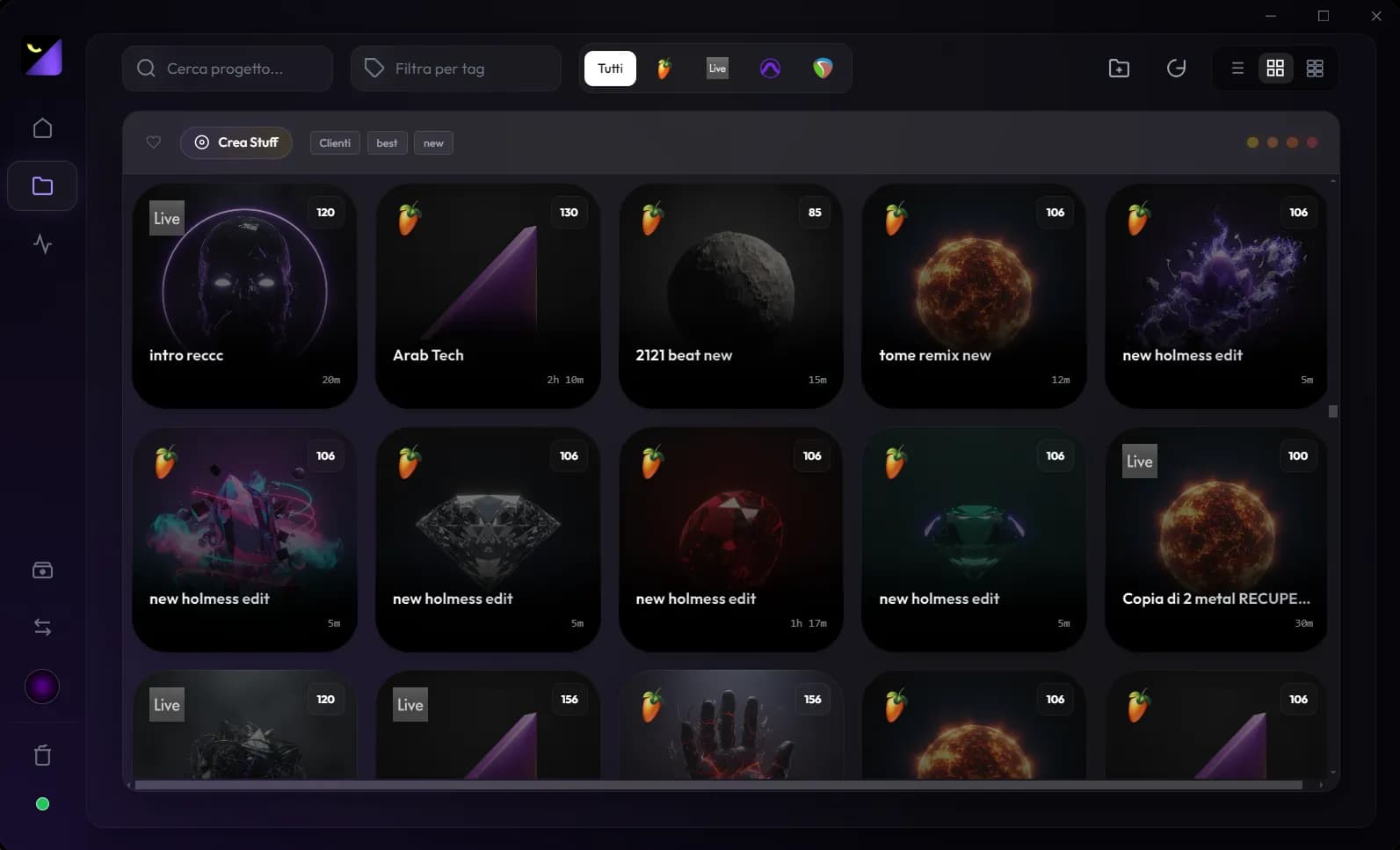
Use tags, artist, favorites, covers and Stuff collections to find projects, and the four status stages to identify the next task. The catalog organizes browsing without automatically rearranging files on disk.
A simple method for beats and client work
Choose a few tags with stable meanings: genre for beats, client or job for videos, destination for deliveries. Put the artist name in its own field and use status for the work stage. Avoid ten variants of the same tag; consistent vocabulary keeps search useful months later.
Assign metadata and use filters
- Find the project in Projects and open its cataloging controls or the save popup.
- Set artist and tags, save and check that the row displays the new data.
- Combine name search, application filters and tag filters to narrow the archive.
- Favorite projects you want to resume and enable Favorites Only when working through that selection.
Customize the four status stages
Dots represent four stages: selecting one fills the bar up to that point. Open the gear control to customize stage names for Audio or Video. Words such as mix or master in filenames can set status automatically on save; correct it if it does not describe the actual work. Status does not certify audio quality or media correctness.
Stuff, collections and covers
A collection groups projects for an album, EP, client or selection you plan to present. Select projects, use Add to Collection and choose an existing collection or create one. Covers make the grid recognizable; list view suits field comparisons. Collection membership does not copy files or create a backup folder.
Hide and restore projects with Trash
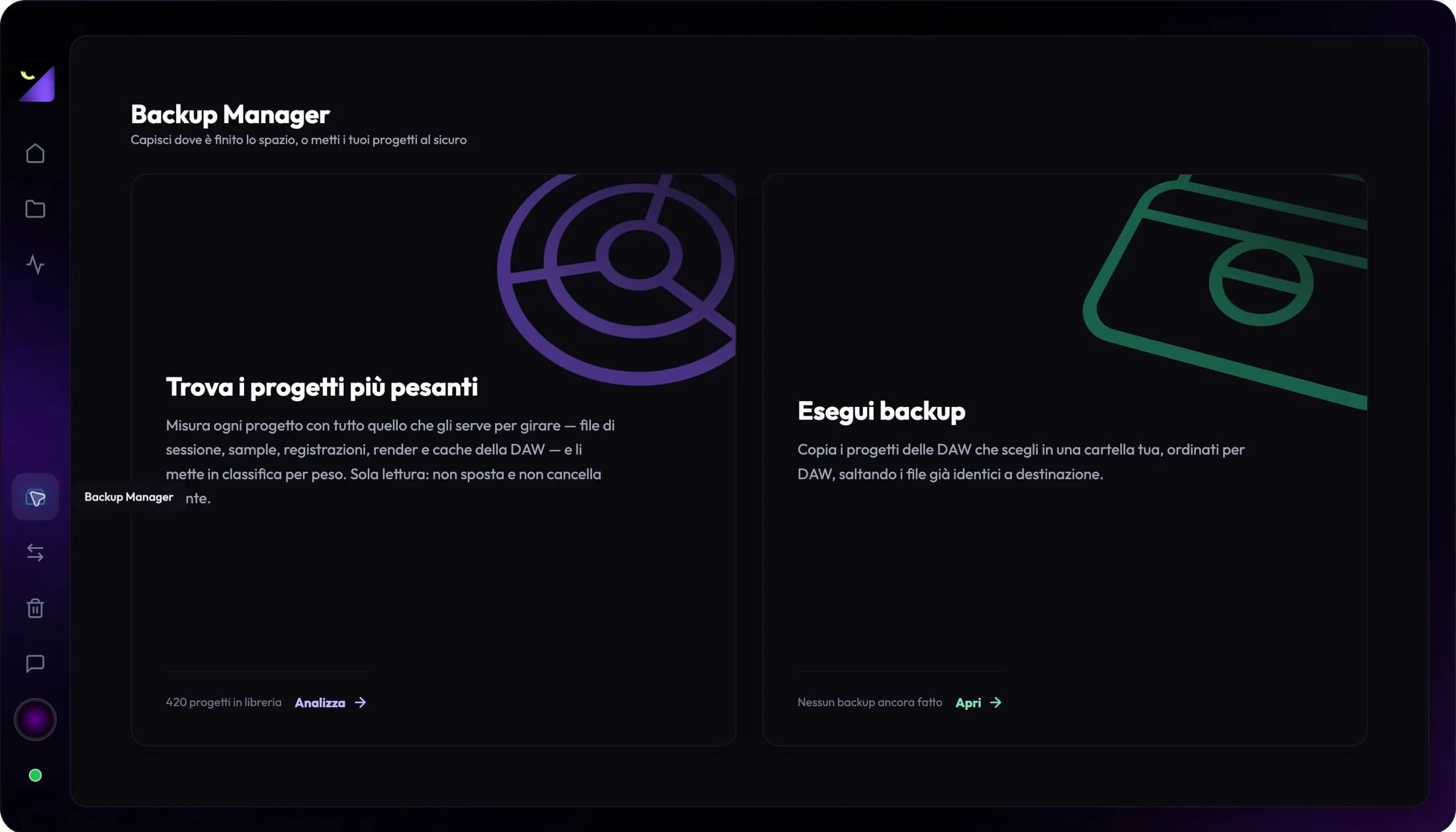
Delete Project and selection actions move work into the app’s Trash. Open that panel and use Restore to return an item to the library. Clear All concerns catalog entries; do not use it to recover gigabytes. For storage, open Disk Management and prepare a verified copy of originals first.
A weekly archive review
Filter work in progress, favorite three priorities and assign each its current stage. Group proposals for one artist in a Stuff collection and link the latest export. Update status at delivery; when the project is complete, verify its backup. The catalog then answers two questions: what to resume today and what to archive.
Frequently asked questions
Do tags change the DAW project?
Catalog metadata organizes work in Wolflow. It does not replace tracks, markers or session structure in your creative software.
Does moving a project to Trash delete its samples?
No, Trash manages library visibility. To change disk files, work on their actual paths and verify all dependencies first.
Try it with your next project
Wolflow is a desktop app for Windows and macOS. Free conversions and backups require a connected account to verify the 7-day quota; Disk Management is a PRO feature. Check the plans for availability.