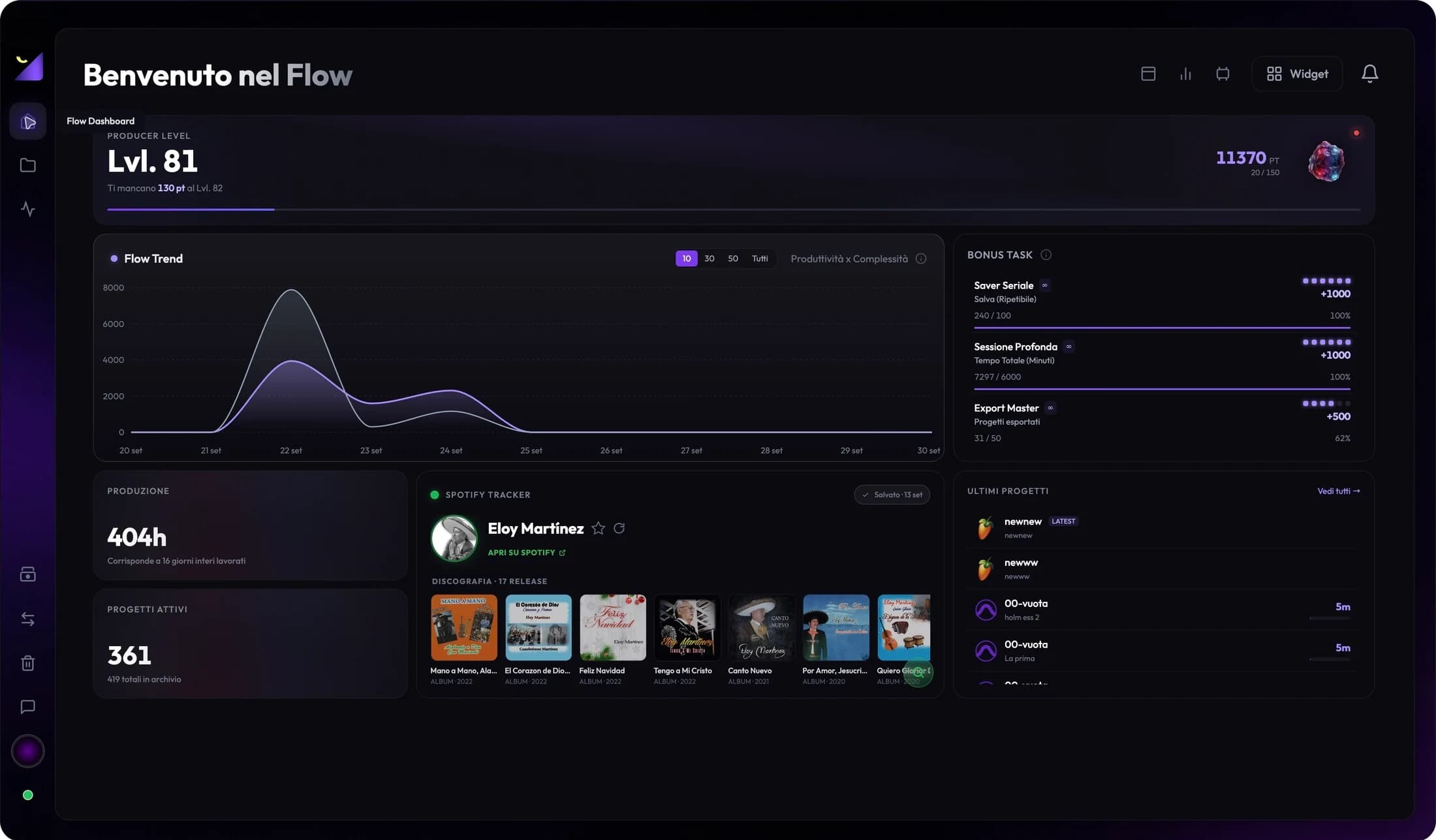
Dashboard and productivity
Track work time on audio and video projects
Wolflow shows application usage and estimated work time from detected data, including available saves and backups. These differ from song duration and are not a perfect record of every productive minute.
Song duration, DAW usage and project time
Duration describes the exportable timeline. DAW usage concerns the detected application while Wolflow is running. Project time comes from history and data associated with the session. An hour with a DAW open does not prove an hour spent on that file; multiple windows, inactivity and unsaved projects can affect attribution.
Estimates from saves and backups
The engine can group saves and autosaves into sessions and reconstruct some past work. It cannot directly observe pre-installation activity without file evidence. Long gaps without saves, deleted backups, timestamps changed by copying and differing history formats can affect estimates. The value indicates detectable work.
Prepare consistent tracking
- Keep Wolflow and Bridge active while working and watch the correct folder.
- Save a project with a recognizable name and path; avoid comparing an unsaved sketch with an indexed session.
- Save regularly in the DAW or editor and check library updates.
- Check project history, production widgets and DAW Usage with consistent mode and period.
Read history and trends
The analytics dashboard aggregates data by period and relates time to complexity. Compare weeks or months using the same project set. Scanning an old archive can increase totals without new production that day. Average project time, activity and average duration describe different things; read labels before treating them as one metric.
When time looks wrong
Verify the correct version and path, check Bridge, saves and backup folders, and reanalyze the project. For copies on other drives, inspect original dates and available history. If results remain unexpected, report a specific case to support. Do not erase all history to correct one estimate.
Use time to plan work
Estimates help identify work absorbing attention and compare habits. For a quote, add a manual review of recording, editing, communication and delivery; not all these activities create saves. Production statistics provide an operational basis rather than an automatic system billing clients for hours.
Frequently asked questions
Can I see work done before installation?
Partly, if readable saves and backups allow reconstruction. It is not direct measurement of all past activity.
Can I use the hours as an exact timesheet?
Use them as estimates to verify. An open app, active project and productive activity do not always coincide.
Try it with your next project
Wolflow is a desktop app for Windows and macOS. Free conversions and backups require a connected account to verify the 7-day quota; Disk Management is a PRO feature. Check the plans for availability.